
🤘 This is a picu Pro feature
The Client Access block gives your clients a simple, passwordless way to access their photo collections – no WordPress account required.
How it works
Add the Client Access block to any page on your site. When a client visits that page, they’ll see a short form asking for their email address. After they submit it, picu checks whether that address is associated with any collections. If it is, they receive an email with a magic link — a one-click button that logs them in automatically.
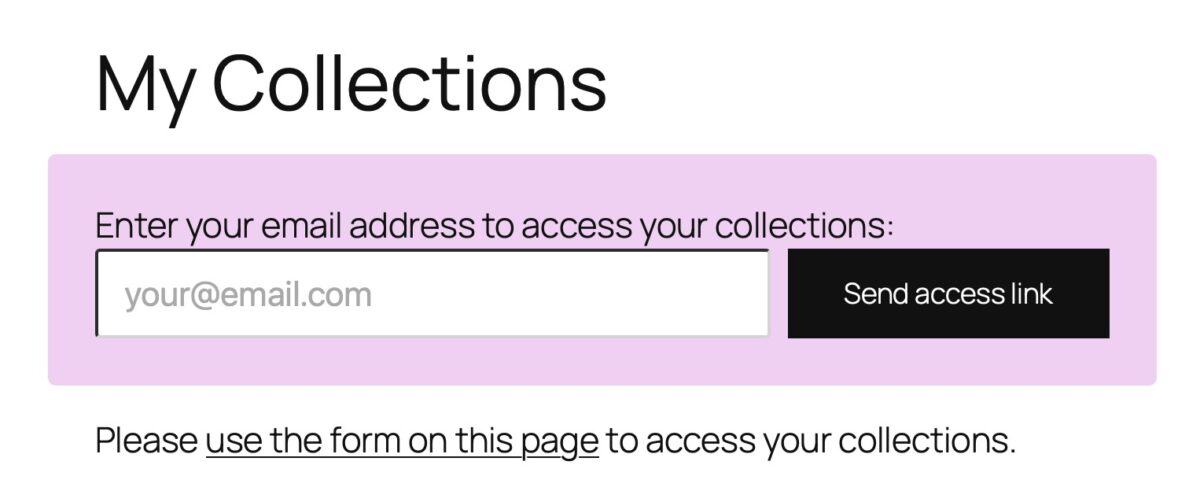
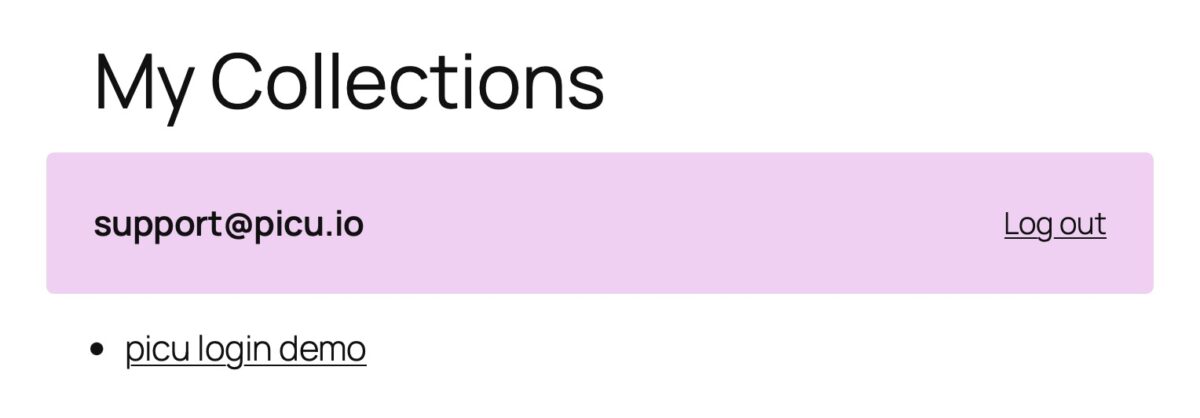
Once they click the link, picu creates a session for them and redirects them back to the page. The form is replaced by a small header showing their email address and a logout link. From that point on, the Collections List block (with the “Use current user” option enabled) will display all collections that belong to their email address.
Session and link expiry
- The magic link is valid for 60 minutes. If it expires, the client can simply request a new one.
- Once logged in, the session stays active for 30 days, so clients don’t have to request a new link every time they return.
Both durations can be changed by using a filter using the Code Snippets plugin or a custom plugin:
// Change the magic link expiry (default: 1 hour)
add_filter( 'picu_client_access_token_expiry', function() {
    return 30 * MINUTE_IN_SECONDS;
} );

// Change the session lifetime (default: 30 days)
add_filter( 'picu_client_access_cookie_lifetime', function() {
    return 7 * DAY_IN_SECONDS;
} );
Code language: JavaScript (javascript)
The values are in seconds. WordPress constants like MINUTE_IN_SECONDS, HOUR_IN_SECONDS, and DAY_IN_SECONDS are available for convenience.
Setting it up
- Create a new page (e.g. “My Collections”)
- Add the Client Access block
- Add the Collections List block below it and enable the “Use current user address” toggle in its settings
- Publish the page
That’s it. You can share the page URL with your clients or link to it from your website’s navigation.
